Your first score
This walkthrough uses nothing but the keyboard and ends with a phrase you can play back and save. If a key doesn’t do what the page says, open the shortcut editor (shortcuts in the battuta menu) — your layout may have different defaults, or you may have rebound something.
-
Start a blank score
Section titled “Start a blank score”Launch battuta. It opens
untitled-1: one treble staff, 4/4, four empty measures. (If you’re looking at another score, press + in the header for a fresh one.) -
Put the caret in the first measure
Section titled “Put the caret in the first measure”Click the first measure’s whole rest. It turns blue — that’s the caret, and the status bar now reads
[ m 1, s 1, v 1, n 1 ]: measure 1, staff 1, voice 1, first event. -
Turn on note input
Section titled “Turn on note input”Press i. The
INPUT (i)box in the status bar goes green and starts reporting the duration you’re about to write. -
Choose a duration, then type pitches
Section titled “Choose a duration, then type pitches”Press 5 for a quarter note, then c d e f.
Each letter writes a note at the caret and steps forward. Octaves are guessed from the neighbouring notes, so a scale stays in one octave instead of leaping about.
The digits run 7 whole, 6 half, 5 quarter, 4 eighth, 3 sixteenth, 2 thirty-second, 1 sixty-fourth.
-
Fill the second measure with a mixed rhythm
Section titled “Fill the second measure with a mixed rhythm”Press 4 (eighths) and type g a b c, then r for a rest, then 5 and g.
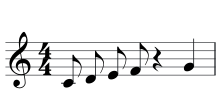
Four eighths, a quarter rest, a quarter note — one legal 4/4 measure. Notice what battuta did not let happen: the measure never held more or less than four beats. Note input is an overwrite mode — a shorter note fills the rest of the slot with rests, a longer one eats the events after it.
-
Add an accidental and a dot
Section titled “Add an accidental and a dot”With the caret still on that last g, press s for a sharp. Press s again to remove it, v for a flat, n for a natural.
Press . to dot the note. The dot takes its extra time from the rests that follow it, so the measure stays exact.
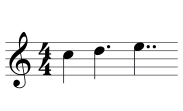
Plain, dotted, double-dotted — the dot key toggles through them. -
Build a chord
Section titled “Build a chord”Type a note, then hold shift and press more letters: shift + e, shift + g stack onto the note you just entered.
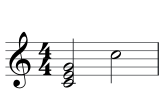
A chord built by adding notes to the one just entered. -
Leave input mode and beam the measure
Section titled “Leave input mode and beam the measure”Press esc. The green box goes dark; letters are back to being commands rather than pitches.
Put the caret in the measure of eighths and press alt + b. Everything shorter than a quarter gets beamed, in groups of half a measure.
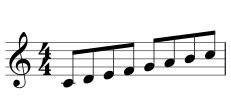
Auto-beaming groups by half measure, whatever the meter. -
Slur a phrase
Section titled “Slur a phrase”Click the first note of a run, then shift-click the last one — the run turns red. Press shift + s.
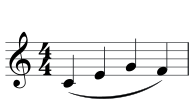
A slur over the selected run. The same selection and key removes it. -
Hear it
Section titled “Hear it”Switch to page view in the header and press ▶. The note being sounded lights up as it plays; the view scrolls to follow. Any edit stops playback, because the moment the document changes the timeline is stale.
-
Save it
Section titled “Save it”Press ctrl + s. A new score has no path yet, so battuta asks where to put it. What lands on disk is plain, indented MEI — open it in a text editor if you like.
Undo is total
Section titled “Undo is total”Try something drastic — ctrl + z puts it back exactly. Not approximately: every command in battuta restores the document byte for byte, which is why the star on the tab disappears again when you undo back to your last save.
Where to go next
Section titled “Where to go next”- Note entry — the whole entry model, including MIDI.
- Navigation — moving the caret like a text cursor.
- Selection — runs, blocks, and what each one enables.
- How battuta thinks — worth ten minutes; it explains every refusal you will ever see.